
3x1 Grid
3240 x 1350px

Use this free online Instagram grid maker to split one image into a profile grid. Choose 3x1, 3x2, 3x3, 9-cut, or custom layouts, preview the posting order, and download numbered PNG tiles.
No image?Try one of these:
Use the homepage as a free online Instagram grid maker: upload, choose 3x1, 3x2, 3x3, 9-cut, carousel, or custom, then download numbered tiles.
Tip: follow the numbers on the preview. 1 uploads first; the highest number uploads last.
Your Instagram grid preview will appear here.
Use these planning sizes for Instagram grid posts before you upload and split the image:
3240 x 1350px
3240 x 2700px
3240 x 4050px
3240 x 5400px
3240 x 6750px
These static examples show what the browser tool can create before a user uploads anything: 3x1 banners, 3x2 campaign grids, 3x3 photo grids, 9-cut profile reveals, and carousel slices. The examples are built into the page; private uploads are not used as public samples.
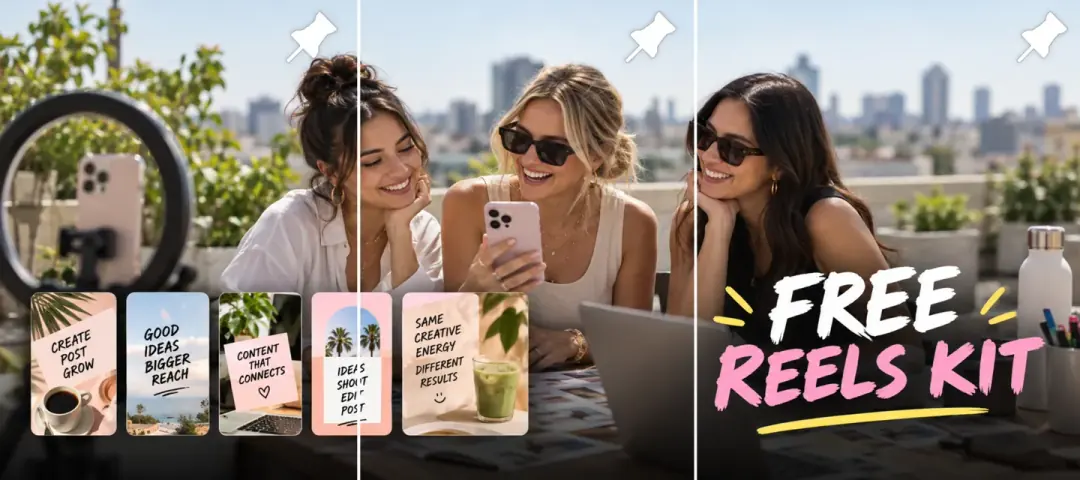
Split a wide launch image into three numbered posts for one clean profile row.
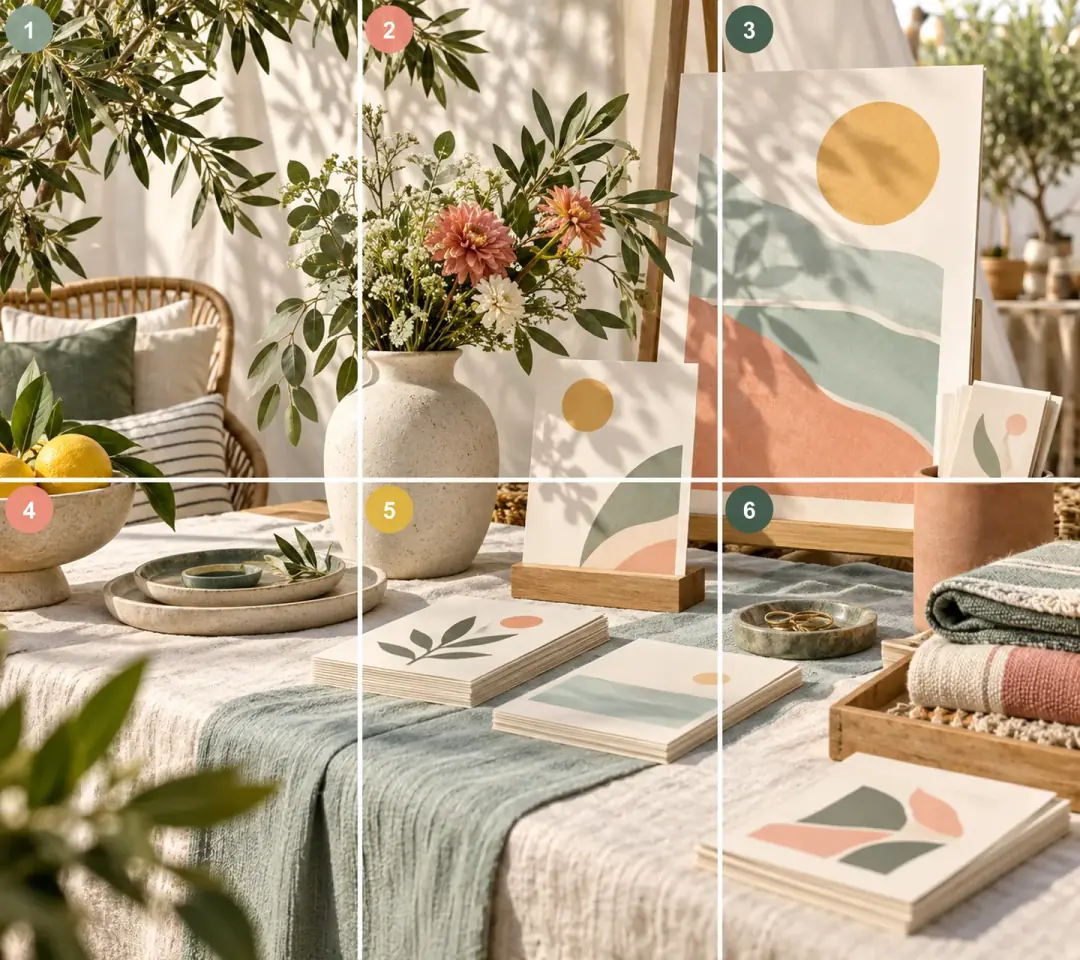
Create six posts for a product drop, portfolio set, event teaser, or brand story.
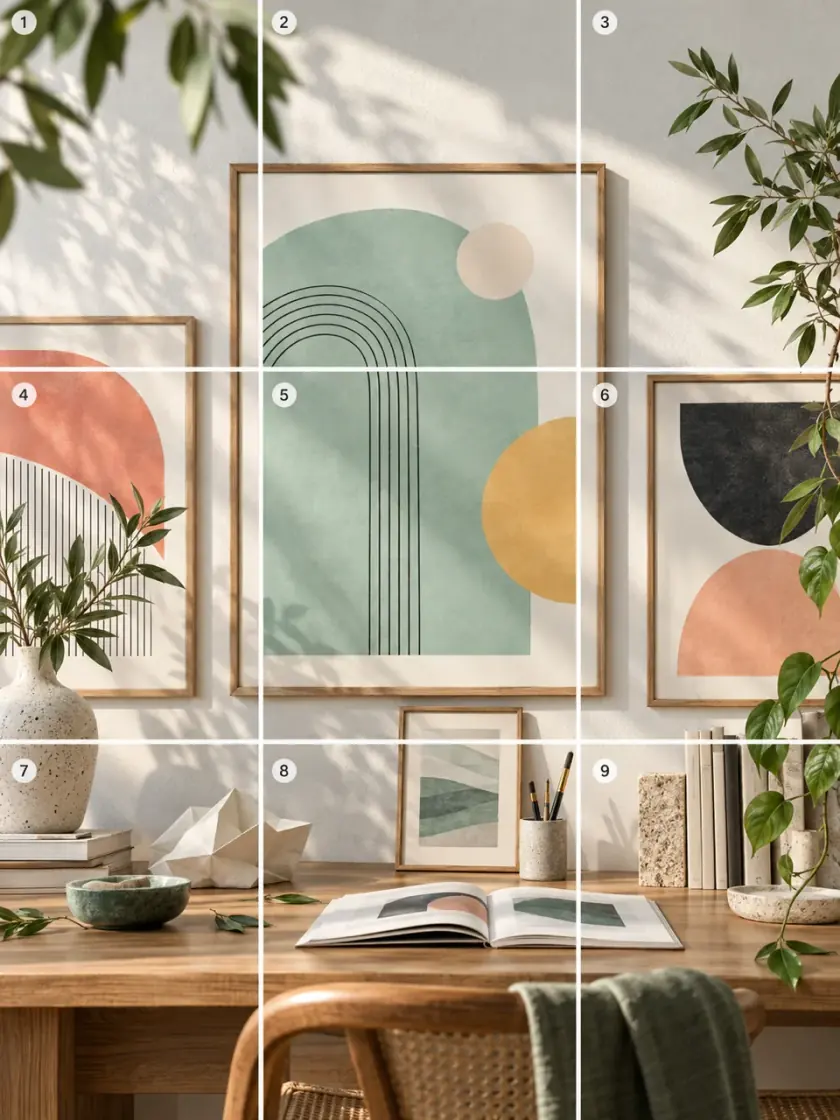
Turn one full visual into nine pieces for a classic Instagram 3x3 grid or 9-cut profile reveal.
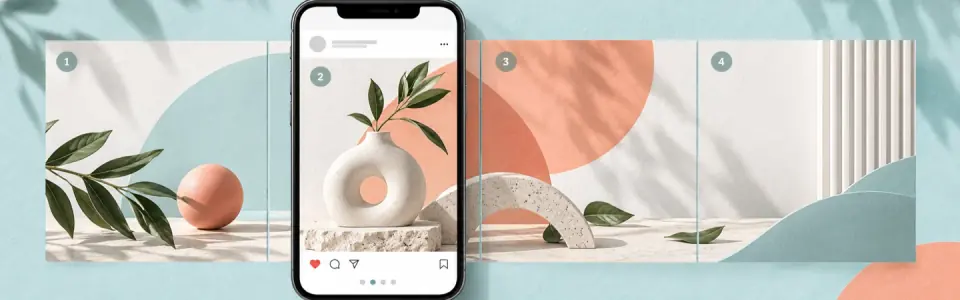
Switch to carousel mode when the design is meant to be read inside one swipeable post.
Start with one finished image and keep the workflow in the browser. Upload the file, select an Instagram grid size or custom layout, adjust the crop until the preview reads correctly, then download the numbered tiles.
Drop in a JPG, PNG, or WebP from your device. Processing runs in a browser canvas and does not create a public upload gallery.
Pick 3x1, 3x2, 3x3, 4x3, 9-cut, carousel, or custom rows and columns based on how many posts you want to create.
Use preview, zoom, exact export, or safe 4:5 export controls before downloading so faces, logos, and text stay readable.
Export a ZIP or individual PNG files. For profile grids, post tile 01 first and continue upward through the numbered filenames.
Upload a local image, choose visual grid presets or custom rows and columns, preview the crop, pick an export style, and download numbered tiles.
Different users arrive with different versions of the same grid task. Creators, brands, photographers, and social teams can compare layout options and choose a clear next action quickly.
Yes. The core browser grid maker is free, requires no sign-up, and does not add a watermark.
Yes. Upload one image, choose the 3x3 preset, preview the nine Instagram grid tiles, and download numbered files.
Use a JPG, PNG, or WebP image. Very small, heavily compressed, or text-heavy images may look less clear after splitting.
No. It creates downloadable image tiles. You still upload the files to Instagram yourself.
No. The current browser workflow does not turn private uploads into public examples or a public results gallery.
Choose a profile grid when the full image should appear across several posts. Choose carousel mode when viewers should swipe through slices inside one post.
Use a high-resolution source image that matches your planned layout ratio, then preview crop lines before export. For taller profile-grid planning, open the dedicated size guide.
Yes. Use the custom column and row controls when the 3x1, 3x2, 3x3, or 4x3 presets do not match your design.
Yes. Export the finished Canva design as one PNG or JPG, upload it here, then split it into numbered Instagram grid tiles.
You can download the generated files to your device. The tool does not provide cloud saving or public sharing.



